
Mode

Modes allow you to present different workflows for your users.
Try different modes in the Widget Playground — open Mode in the sidebar.
type WidgetMode = 'default' | 'split' | 'custom' | 'refuel';

Default Mode

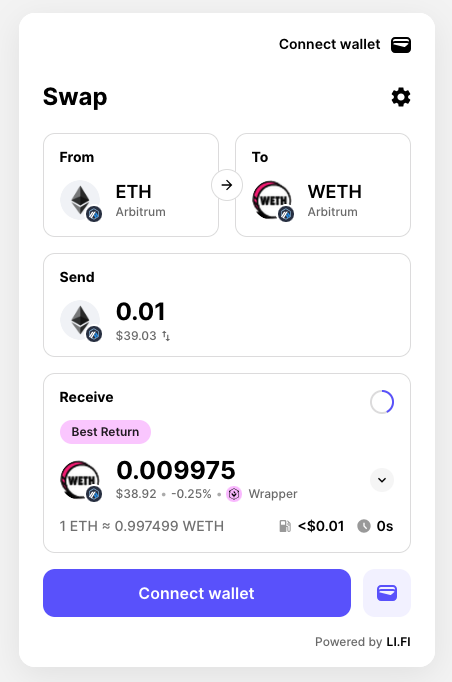
The default mode provides the standard functionality to bridge and swap in a unified view.
const widgetConfig: WidgetConfig = {
  mode: 'default', // This is the default
};

Split Mode

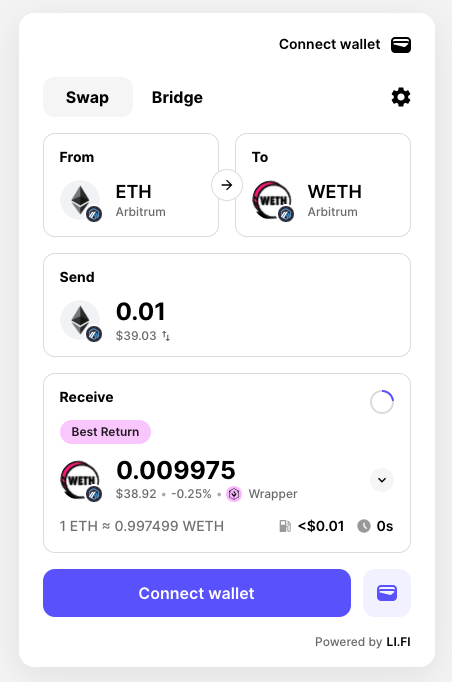
The split mode separates mental models and provides different views for bridging and swapping experiences with tabs on the main page.
const widgetConfig: WidgetConfig = {
  mode: 'split',
};

Split Mode Options

For mode: 'split', the modeOptions configuration controls whether to show both “Swap” and “Bridge” tabs or a single interface:
  • Default (no options): Shows both “Bridge” and “Swap” tabs
  • split: 'bridge': Shows only bridge interface (no tabs)
  • split: 'swap': Shows only swap interface (no tabs)
  • split: { defaultTab: 'bridge' } or split: { defaultTab: 'swap' }: Shows both tabs with the specified default tab selected
// Default - shows both tabs
const tabsConfig: WidgetConfig = {
  mode: 'split',
};

// Pure bridge interface
const bridgeConfig: WidgetConfig = {
  mode: 'split',
  modeOptions: {
    split: 'bridge',
  },
};

// Pure swap interface
const swapConfig: WidgetConfig = {
  mode: 'split',
  modeOptions: {
    split: 'swap',
  },
};

// Both tabs with swap as default
const tabsSwapDefaultConfig: WidgetConfig = {
  mode: 'split',
  modeOptions: {
    split: { defaultTab: 'swap' },
  },
};
split-subvariant

Split mode (Default)

swap-subvariant

Split mode (Swap option)

Custom Mode

The custom mode offers a different look, allowing you to show custom components and build complete new flows including NFT Checkout and Deposit.
type CustomMode = 'checkout' | 'deposit';

Checkout Flow

For NFT or product checkout flows:
const widgetConfig: WidgetConfig = {
  mode: 'custom',
  modeOptions: {
    custom: { type: 'checkout' },
  },
  contractCalls: [...], // Your contract calls
  contractComponent: <YourCheckoutComponent />,
  contractTool: {
    name: 'Your Protocol',
    logoURI: 'https://your-protocol.com/logo.png',
  },
};

Deposit Flow

For protocol deposit flows:
import { ChainType, LiFiWidget, WidgetConfig } from '@lifi/widget';

const widgetConfig: WidgetConfig = {
  mode: 'custom',
  modeOptions: {
    custom: { type: 'deposit' },
  },
  toAddress: {
    name: 'Protocol Vault',
    address: '0x...',
    chainType: ChainType.EVM,
    logoURI: 'https://your-protocol.com/logo.png',
  },
  disabledUI: { toAddress: true },
  hiddenUI: { appearance: true, language: true },
  showSingleRoute: true,
  contractComponent: <YourDepositCard />,
  contractTool: {
    name: 'Your Protocol',
    logoURI: 'https://your-protocol.com/logo.png',
  },
};
See the complete Deposit Flow example.

Refuel Mode

The refuel mode is optimized for gas refueling operations, helping users get native tokens on destination chains.
const widgetConfig: WidgetConfig = {
  mode: 'refuel',
};

ModeOptions Interface

type SplitMode = 'bridge' | 'swap'
type SplitModeOptions = {
  defaultTab: SplitMode
}

type CustomMode = 'checkout' | 'deposit'

interface ModeOptions {
  // Options for 'split' mode
  // Pass a string for single-mode (no tabs), or an object for tabs with a default
  split?: SplitMode | SplitModeOptions
  
  // Options for 'custom' mode
  custom?: { type: CustomMode }
}

Variant

Variants provide a way to optimize the presentational style of the Widget for the space available in your application.
Try different variants in the Widget Playground — open Variant in the sidebar.
type WidgetVariant = 'compact' | 'wide' | 'drawer';

Compact Variant

The compact variant is a great choice when you have limited space on a page or are dealing with smaller screen sizes. It has everything you need to bridge and swap in a compact view and allows you to integrate the widget wherever you want on your web app’s page.
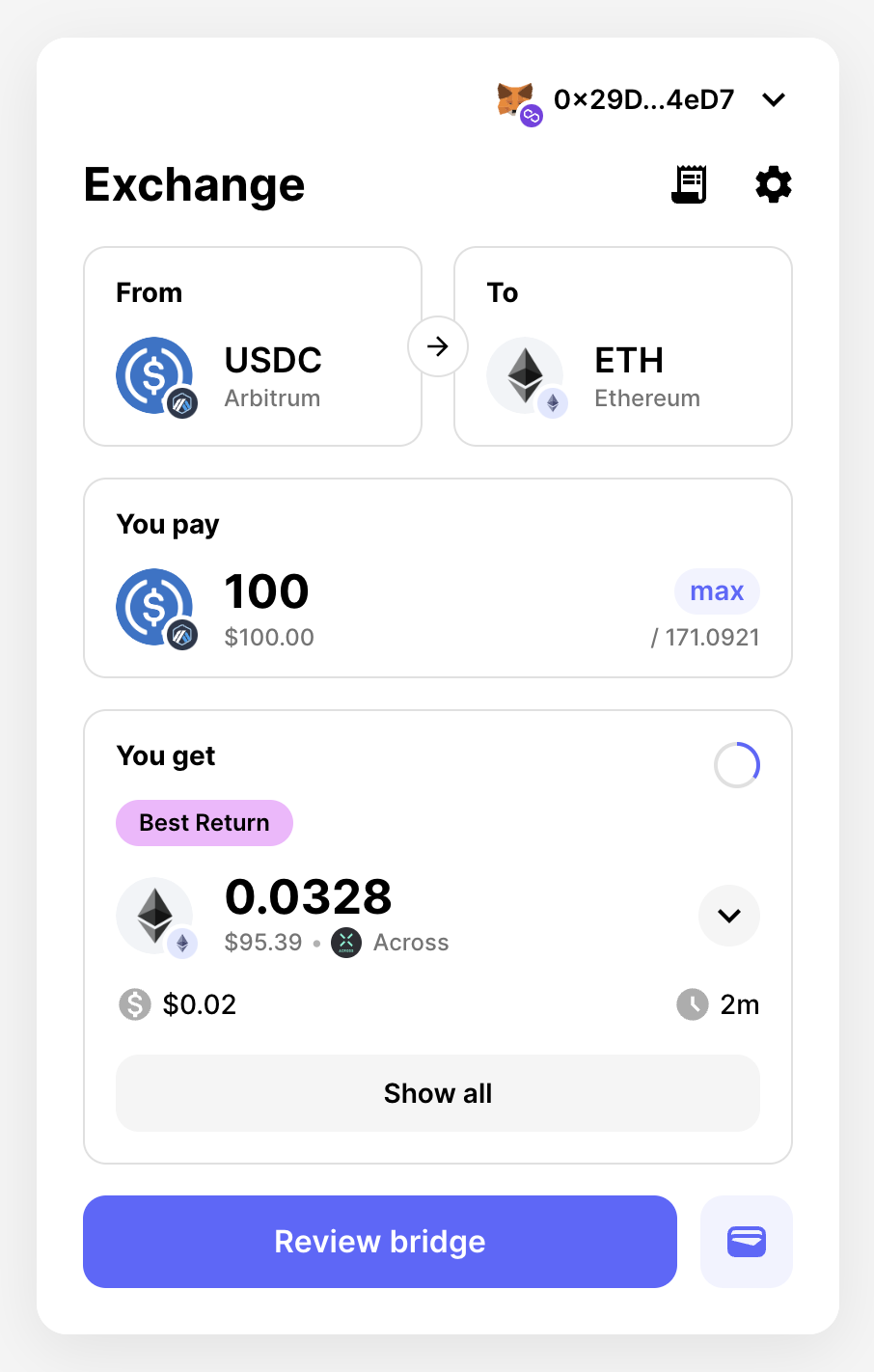
const widgetConfig: WidgetConfig = {
  variant: 'compact', // This is the default
};
Compact variant

Wide Variant

The wide variant allows you to take advantage of bigger page and screen sizes where you might have more available screen real estate. It provides a more comprehensive overview of available routes, displayed in a sidebar with slick animation.
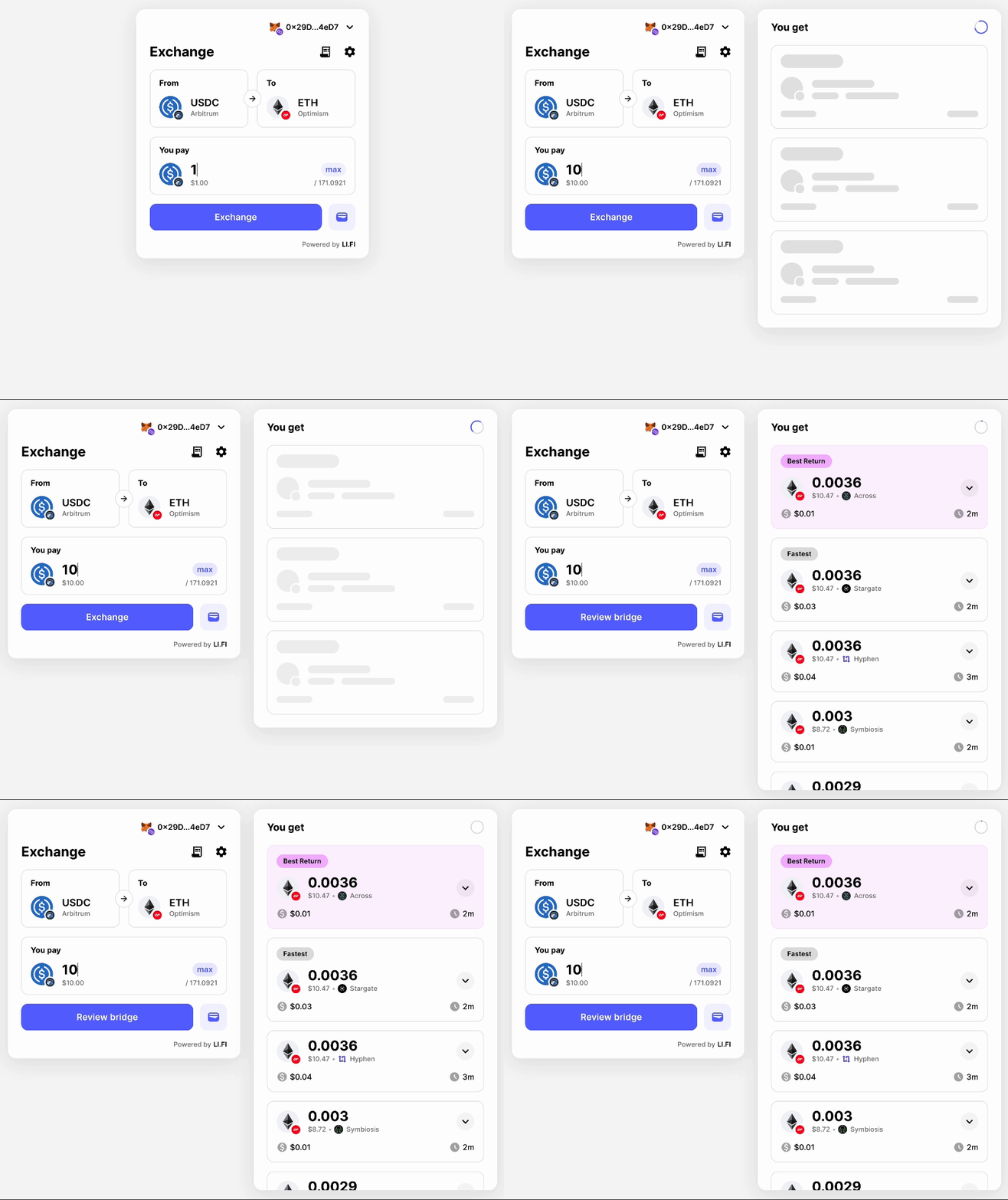
const widgetConfig: WidgetConfig = {
  variant: 'wide',
};
Wide variant

Chain Sidebar

The wide variant shows a chain sidebar by default. To hide it, set chainSidebar to true in hiddenUI:
const widgetConfig: WidgetConfig = {
  variant: 'wide',
  hiddenUI: {
    chainSidebar: true,
  },
};

Drawer Variant

The drawer variant allows you to show or hide the Widget based on user interaction. It can fit nicely on the page’s side and has the same layout as the compact variant.

const widgetConfig: WidgetConfig = {
  variant: 'drawer',
};
Drawer variant

Controlling the Drawer

The drawer doesn’t have a pre-built button to open and close it. To control the drawer, create and assign a ref to the widget:
import { useRef } from 'react';
import { LiFiWidget, WidgetDrawer, WidgetConfig } from '@lifi/widget';

export const WidgetPage = () => {
  const drawerRef = useRef<WidgetDrawer>(null);

  const toggleWidget = () => {
    drawerRef.current?.toggleDrawer();
  };

  const openWidget = () => {
    drawerRef.current?.openDrawer();
  };

  const closeWidget = () => {
    drawerRef.current?.closeDrawer();
  };

  const isWidgetOpen = () => {
    return drawerRef.current?.isOpen();
  };

  return (
    <div>
      <button onClick={toggleWidget}>Toggle Widget</button>
      <button onClick={openWidget}>Open Widget</button>
      <button onClick={closeWidget}>Close Widget</button>
      <LiFiWidget
        ref={drawerRef}
        config={{
          variant: 'drawer',
        }}
        integrator="drawer-example"
      />
    </div>
  );
};

WidgetDrawer Interface

interface WidgetDrawer {
  isOpen(): boolean      // Check if drawer is open
  toggleDrawer(): void   // Toggle drawer open/closed
  openDrawer(): void     // Open the drawer
  closeDrawer(): void    // Close the drawer
}

Controlled Drawer

You can also control the drawer state externally using the open and onClose props:
import { useState } from 'react';
import { LiFiWidget, WidgetConfig } from '@lifi/widget';

export const WidgetPage = () => {
  const [isOpen, setIsOpen] = useState(false);

  return (
    <div>
      <button onClick={() => setIsOpen(true)}>Open Widget</button>
      <LiFiWidget
        open={isOpen}
        onClose={() => setIsOpen(false)}
        config={{
          variant: 'drawer',
        }}
        integrator="controlled-drawer-example"
      />
    </div>
  );
};

Height

Here are several recommended ways to configure the widget’s height: default, restricted max height, restricted height, and full height.
Try different height configurations in the Widget Playground — open Height in the sidebar.
We recommend default, restricted max height, or restricted height for the compact and wide variants. Full height is recommended only for compact. The drawer variant uses full container/viewport height.

Default

By default the widget fits its content on smaller pages and caps at 686 pixels (maxHeight) on pages with long lists. This requires no config change.

Restricted Max Height

The widget expands and contracts to fit content but won’t exceed the stated max height. Overflow pages become scrollable. Set maxHeight on theme.container as a number (pixels). Values above 686 (the default) are required.
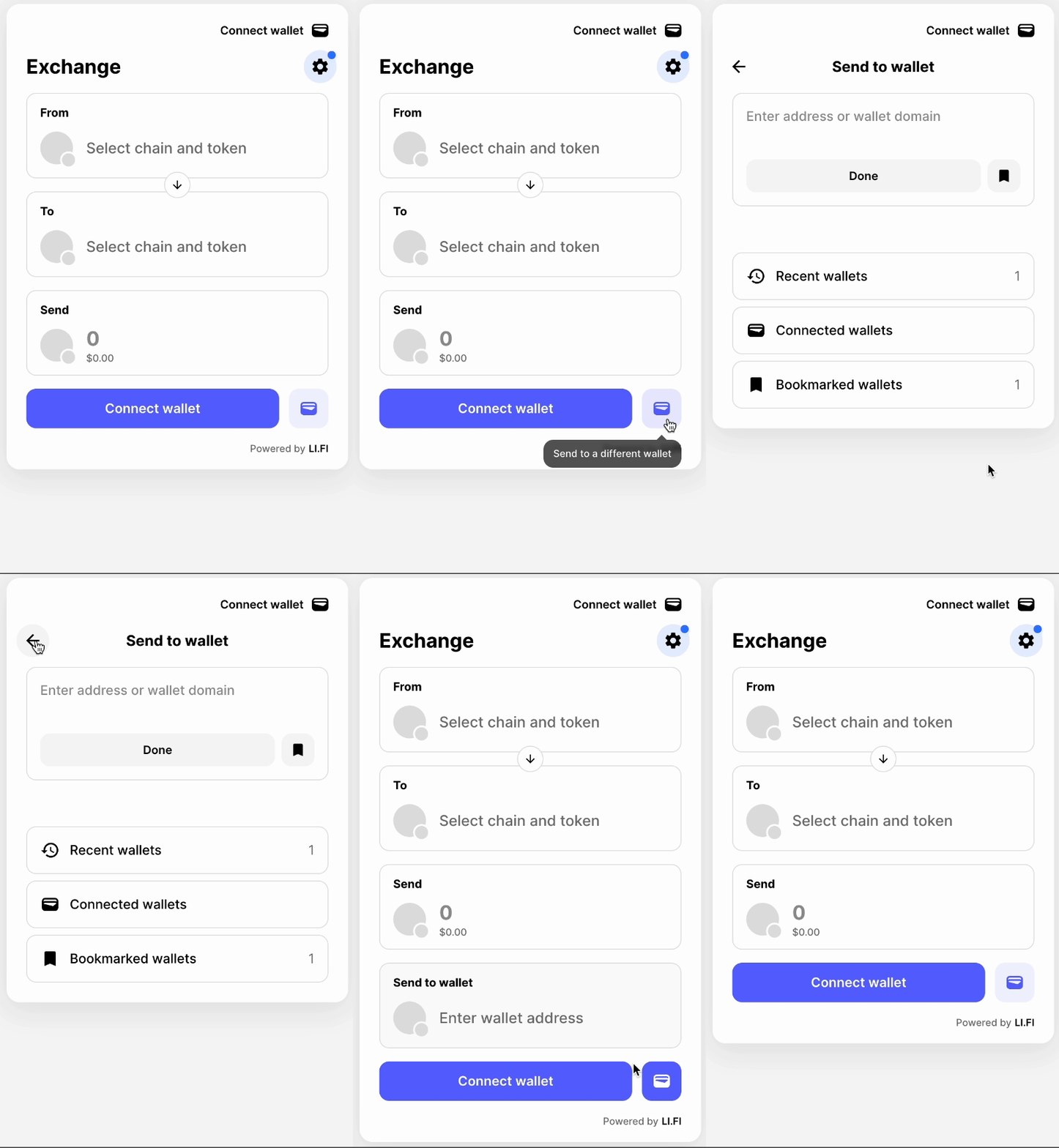
import { WidgetConfig } from '@lifi/widget';

const widgetConfig: WidgetConfig = {
  theme: {
    container: {
      maxHeight: 820,
    },
  },
};

Restricted Height

All pages occupy the exact height specified — the widget stays a consistent size. Overflow pages become scrollable. Set height on theme.container as a number (pixels). Values above 686 (the default) are required.
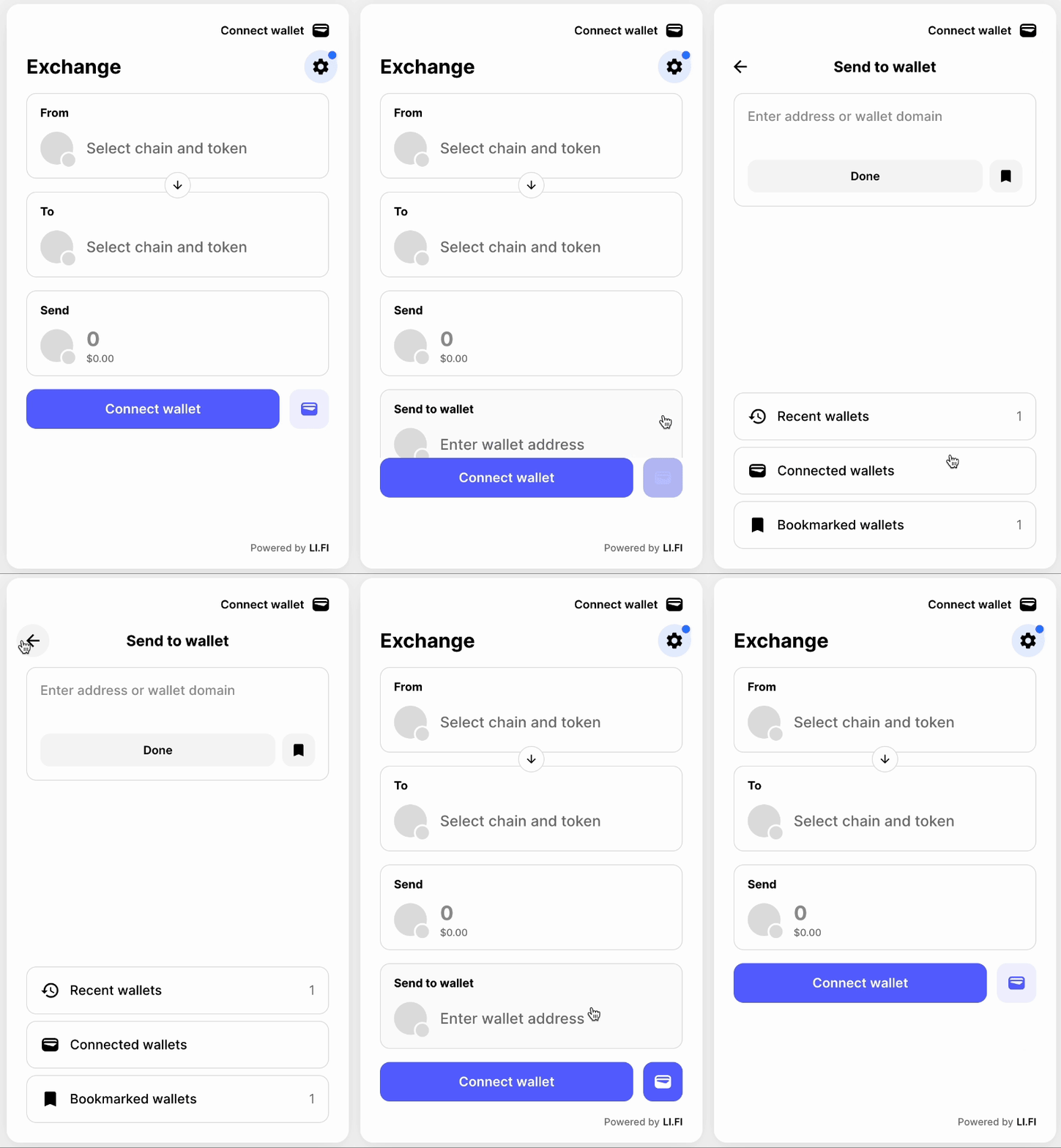
import { WidgetConfig } from '@lifi/widget';

const widgetConfig: WidgetConfig = {
  theme: {
    container: {
      height: 900,
    },
  },
};
Don’t use height and maxHeight together — they represent different layout approaches in the widget.

Full Height

Recommended for mobile and limited screen space where the widget is the primary content. The widget fills the full height of its containing HTML element and delegates scrolling to the page.
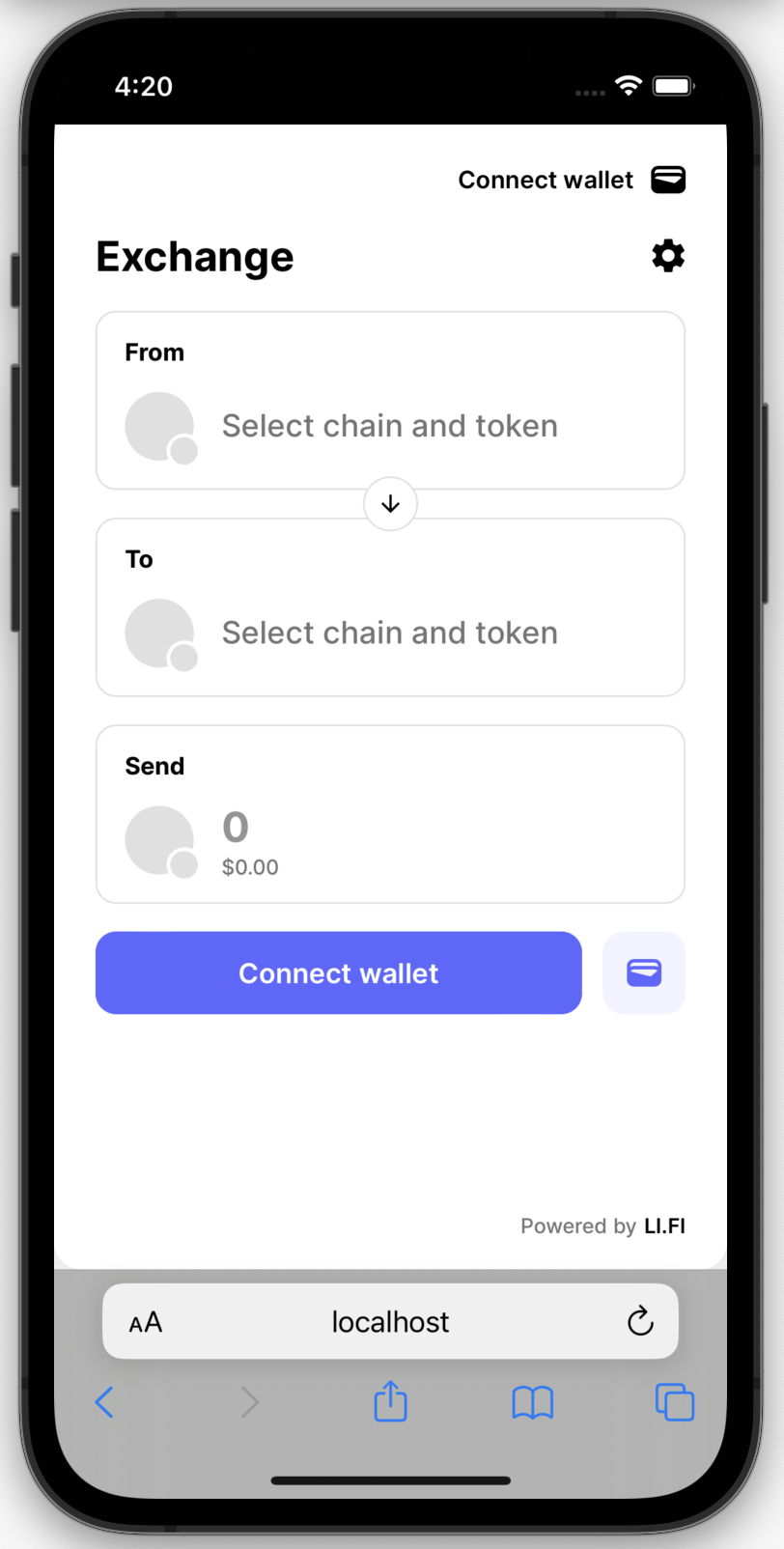
import { WidgetConfig } from '@lifi/widget';

const widgetConfig: WidgetConfig = {
  variant: 'compact',
  theme: {
    container: {
      display: 'flex',
      height: '100%',
    },
    header: {
      position: 'fixed',
      top: 0,
    },
  },
};
Configuration breakdown:
  • variant: ‘compact’ — required; compact is built for smaller screens.
  • theme.containerdisplay: 'flex' and height: '100%' make the widget fill its container.
  • theme.header (optional) — set position: 'fixed' and a top value to make the header sticky. Adjust top to account for elements above the widget (e.g. a 60px nav bar → top: 60). Without this, the header scrolls with page content.
Full height delegates sizing to the parent container, so your page’s HTML and CSS must handle this correctly.
  • Viewport meta may need to be updated for the page to present correctly
    • e.g. <meta name="viewport" content="width=device-width, initial-scale=1, user-scalable=no">
  • The Widget Playground uses min-height: 100dvh — pages taller than the viewport remain scrollable, while shorter pages use flex to fill the screen.
  • Add overscroll-behavior: none; to the root/body of your page to prevent undesired scrolling behavior.
Consider placement in relation to your site’s navigation, headers, and footers. Preview header and/or footer placement in the Widget Playground — open Developer Controls in the sidebar and toggle ‘Show mock header’ and/or ‘Show mock footer’.